Benchmarking Disk Performance
There are tools such as Iozone (http://www.iozone.org), smallfile (https://github.com/bengland2/smallfile), and Flexible IO (https://github.com/axboe/fio), which are available to benchmark disk performance. For this recipe, we will use FIO. For that, we need to write a job file, which mimics the workload you want to run. Using this job file, we can simulate the workload on the target. For this recipe, let’s take the FIO example from the benchmark results, which IBM has published (https://github.com/thewmf/kvm-docker-comparison/tree/master/fio).
Getting ready
On a bare metal/VM/Docker container, install FIO and mount the disk containing a filesystem for each test under /ferrari or anything which is mentioned in the FIO job file. On bare metal, you can mount natively; on the VM, you can mounted using the virtual disk driver or perform a device pass-through. On Docker, we can attach the filesystem from the host machine using Docker volumes.
Prepare the workload file. We will pick: https://github.com/thewmf/kvm-docker-comparison/blob/master/fio/mixed.fio:
$ curl -o mixed.fio https://raw.githubusercontent.com/thewmf/kvm-docker-comparison/master/fio/mixed.fio
$ cat mixed.fio
[global]
ioengine=libaio
direct=1
size=16g
group_reporting
thread
filename=/ferrari/fio-test-file
[mixed-random-rw-32x8]
stonewall
rw=randrw
rwmixread=70
bs=4K
iodepth=32
numjobs=8
runtime=60
NOTE
This recipe is specific to Linux; it may work on Docker for Mac or Windows with some minor changes.
Using the preceding job file, we can do random direct IO on /ferrari/fio-test-file with 4K block size using the libaio driver on a 16 GB file. The I/O depth is 32 and the number of parallel jobs are 8. It is a mix workload, which does a 70 percent read and 30 percent write.
How to do it…
Follow these steps:
- For a bare metal and VM test, you can just run the FIO job file and collect the result:
$ fio mixed.fio- For a Docker test, you can prepare a Docker file as follows:
FROM ubuntu:18.04RUN apt-get updateRUN apt-get -qq install -y fioADD mixed.fio /VOLUME ["/ferrari"]ENTRYPOINT ["fio"]- Now, create an image using the following command:
$ docker image build -t docker_fio_perf .- Start the container as follows to run the benchmark and collect the results as shown in the follwoing screenshot:
$ docker container run --rm -v /ferrari:/ferrari docker_fio_perf mixed.fio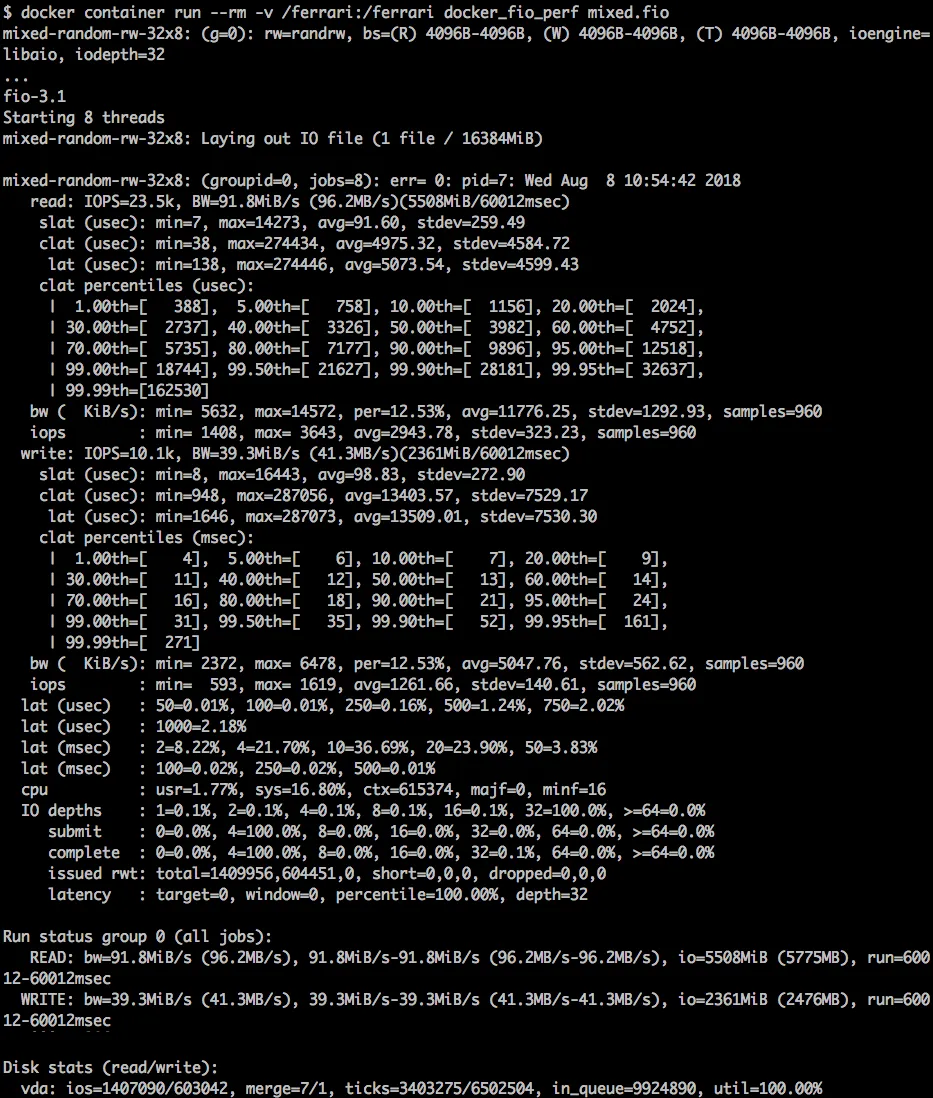
- While running the preceding test on Fedora/RHEL/CentOS, where SELinux is enabled, you will get the Permission denied error. To fix it, relabel the host directory while mounting it inside the container as follows:
$ docker container run --rm -v /ferrari:/ferrari:z
docker_fio_perf mixed.fio
How it works…
FIO will run the workload given in the job file and spit out the results.
There’s more…
Once the results are collected, you can do a result comparison. You can even try out different kinds of I/O pattern using the job file and get the desired result. When you look at the results, a few of the things you will want to examine are as follows:
-
iops : The number of input/output operations per second; the higher the better.
-
bandwidth (bw) : The rate of data transfer, bit rate, or throughput; the higher the better.
-
Latency (lat) : The time that passes between submission to the kernel and when the IO is completehe lower the better.
See also
Look at the disk benchmark results published in IBM and VMware using FIO in the links referenced earlier in this chapter.