Introduction
In Chapter 3, Working with Docker Images , we saw how Dockerfiles can be used to create images consisting of different services/software. Later, in Chapter 4, Network and Data Management for Containers , we saw how one Docker container can talk to the outside world with respect to data and network. In Chapter 5, Docker Use Cases , we looked into different use cases of Docker, and in Chapter 6, Docker APIs and SDKs , we looked at how to use remote APIs to connect to the remote Docker host.
Ease of use is all to the good, but before going into production, performance is one of the key aspects that is considered. In this chapter, we’ll see performance-impacting Docker features and what approach we can follow to benchmark different subsystems. While doing performance evaluation, we need to compare Docker performance against the following:
-
Bare metal
-
Virtual machine
-
Docker running inside a virtual machine
In the chapter, we will just look at an approach you can follow to do performance evaluation rather than performance numbers collected from runs to do a comparison. However, I’ll point out performance comparisons done by different companies, which you can refer to.
Let’s first look at some of the Docker performance impacting features:
-
Volumes : While putting down any enterprise class workload, you would like to tune the underlying storage accordingly. You should not use the primary/root filesystem used by containers to store data. Docker provides the facility to attach/mount external storage through volumes. As we saw in Chapter 4, Network and Data Management for Containers , there are two types of volume as follows:
-
Volumes that are mounted through the host machine using the -volume option
-
Volumes that are mounted through another container using the -volumes-from option
-
Storage drivers : We looked at different storage drivers in Chapter 1, Introduction and Installation, which are vfs, aufs, btrfs, zfs, devicemapper, and overlayFS. You can check the currently supported storage drivers and their selection priority if nothing is chosen as the Docker start time at https://github.com/moby/moby/blob/master/daemon/graphdriver/driver_linux.go.
If you are running Fedora, CentOS, or RHEL, then the device mapper will be the default storage driver. You can find some device mapper-specific tuning at https://github.com/moby/moby/tree/master/daemon/graphdriver/devmapper.
You can change the default storage driver with the -s option to the Docker daemon. You can update the distribution-specific configuration/systems file to make changes for service restart. For Fedora/RHEL/CentOS, you will have the update storage-driver field in /etc/docker/daemon.json – something like the following so that you can use the btrfs backend:
"storage-driver": "btrfs"The following graph shows you how much time it takes to start and stop 1,000 containers with different configurations of storage driver:
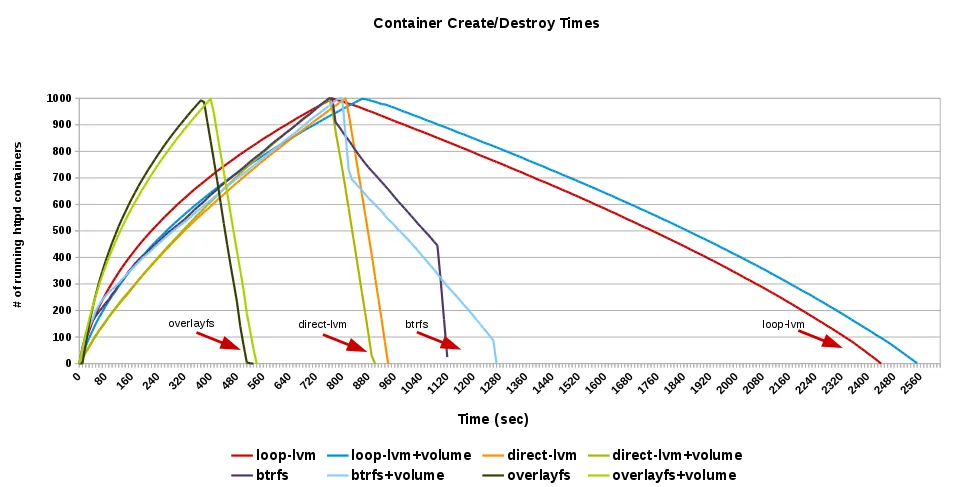
As you can see, overlayFS performs better than other storage drivers.
--net=host: As we know, by default, Docker creates a bridge and associates IPs from it to the containers. Using--net=hostexposes the host networking stack to the container by skipping the creation of a network namespace for the container. From the tests, we can see that this option always gives better performance as compared to the bridged one.
This gives us some constraints, such as we cannot have two containers or host apps listening on the same port.
-
cgroups: Docker’s default execution driver, libcontainer, exposes differentcgroupsknobs, which can be used to fine-tune container performance. Some of them are as follows: -
CPU shares : With this, we can give proportional weight to the containers so that the resource will be shared. By default, all containers get the same proportion of CPU cycles. To modify the proportion from the default of 1024, use the
-cor--cpu-sharesflag to set the weighting to 2 or higher. The proportion will only apply when CPU-intensive processes are running. When tasks in one container are idle, other containers can use the left-over CPU time. Consider the following example:
$ docker container run -it -c 100 alpine ash- CPUsets : Using CPUSets will allow you to limit the container to just running on the selected CPU cores. For example, the following code will only run threads inside a container on the 0th and 3rd core:
$ docker container run -it --cpuset=0,3 alpine ash- Memory limits : We can set memory limits to a container. For example, the following will limit the memory usage to 512 MB for the container:
$ docker container run -it -m 512M alpine ash- The sysctl and ulimit settings : In a few cases, you might have to change some of the
syscltvalues depending on the use case to get optimal performance, such as changing the number of open files. You can change theulimitsettings with the following command:
$ docker container run -it --ulimit data=8192 alpine ashThe preceding command would be a container-specific setting. We can also set some of these settings through the configuration file of the Docker daemon, which will be applicable to all containers by default. For example, looking at the configuration file for Docker, you will see something like the following in /etc/docker/daemon.json :
{
"default-ulimits": {
"nofile": "1048576",
"nproc": "1048576",
"core": "-1"
}
}
Feel free to change the values to fit your use case. If you are using Docker for Mac or Windows, you would change these values from their preferences menu.
You can learn about Docker performance by studying the work done by others. The following are some of the Docker performance-related studies that have been published by a few companies:
-
From Red Hat:
- Performance Analysis of Docker on Red Hat Enterprise Linux:
- Comprehensive Overview of Storage Scalability in Docker:
- Beyond Microbenchmarks – breakthrough container performance with Tesla efficiency:
- Containerizing Databases with Red Hat Enterprise Linux:
-
From IBM:
- An Updated Performance Comparison of Virtual Machines and Linux Containers:
-
From VMware:
- Docker Containers Performance in VMware vSphere:
To do the benchmarking, we need to run a similar workload on different environments (bare-metal/VM/Docker) and then collect results with different performance stats. To simplify things, we can write common benchmark scripts which can be run on different environments. We can also create Dockerfiles to spin off containers with workload generation scripts. For example, in the Performance Analysis of Docker on Red Hat Enterprise Linux article, which was listed earlier (https://github.com/redhat-performance/docker-performance/blob/master/Dockerfiles/Dockerfile), the author used a Dockerfile to create a CentOS image and used the container environment variable to select a Docker and non-Docker environment for the benchmark script run-sysbench.sh .
Similarly, Dockerfiles and related scripts are published by IBM and are available at https://github.com/thewmf/kvm-docker-comparison.
We will be using some of the Docker files and scripts mentioned earlier in the recipes in this chapter.